Export data and maps
Choose the data or view you need, check its coordinates and units, and download it for the next part of your workflow.
Choose the export for your task
| What you need | Where to start | Typical output |
|---|---|---|
| Drilling or tabular data | Export from the relevant map, file selection, or 3D scene | CSV, Excel, Shapefile, or GeoJSON, as offered by that selection. |
| A georeferenced map image | The layer's settings on the map | GeoTIFF where a georeferenced raster is available. |
| Drilling and terrain for mining software | The 3D or supported map export dialog | Leapfrog or Micromine package. |
| A cross section for review | Export → Cross Section in 3D | The image or document formats offered by the section workflow. |
| A prediction | Export from the scene containing the completed prediction | Standard package with selected prediction attachments; see the prediction export guide. |
Formats depend on the selection and your access. Check the layers selected in the export dialog even if you have already hidden some layers in the view.
Exports and your plan
| Plan | What you can export |
|---|---|
| Free | Public drillholes and map layers you have acquired, exported from a map at no extra credit cost; 3D and cross-section exports of the public drillholes you have acquired; plus your own data. |
| Starter | Public drillholes and map layers you have acquired, exported from a map at no extra credit cost; 3D and cross-section exports of the public drillholes you have acquired; plus your own data. |
| Monitoring | Your own processed files and maps of your own data. Public data cannot be exported. |
| Professional | Public data from maps, 3D scenes and cross sections within your plan allowance, plus your own data. |
| Enterprise | As set out in your organization's agreement. |
A Free or Starter export contains only records you have acquired. If the selection includes public records you have not opened yet, the whole export is refused and nothing is created. Open those records on a map to acquire them with credits, then export again. A 3D or cross-section export on Free or Starter includes the acquired drillholes, your own data and the scene's terrain; public map layers export from a map export. See Public data charges.
Export selected scene data
- Open the map or 3D scene containing the data you need and select Export.
- Review the available layer list. Include the intended drilling, terrain, and supported attachments.
- Choose the output format and start the export.
- Open Exports in the main menu to follow the job and download the completed package.
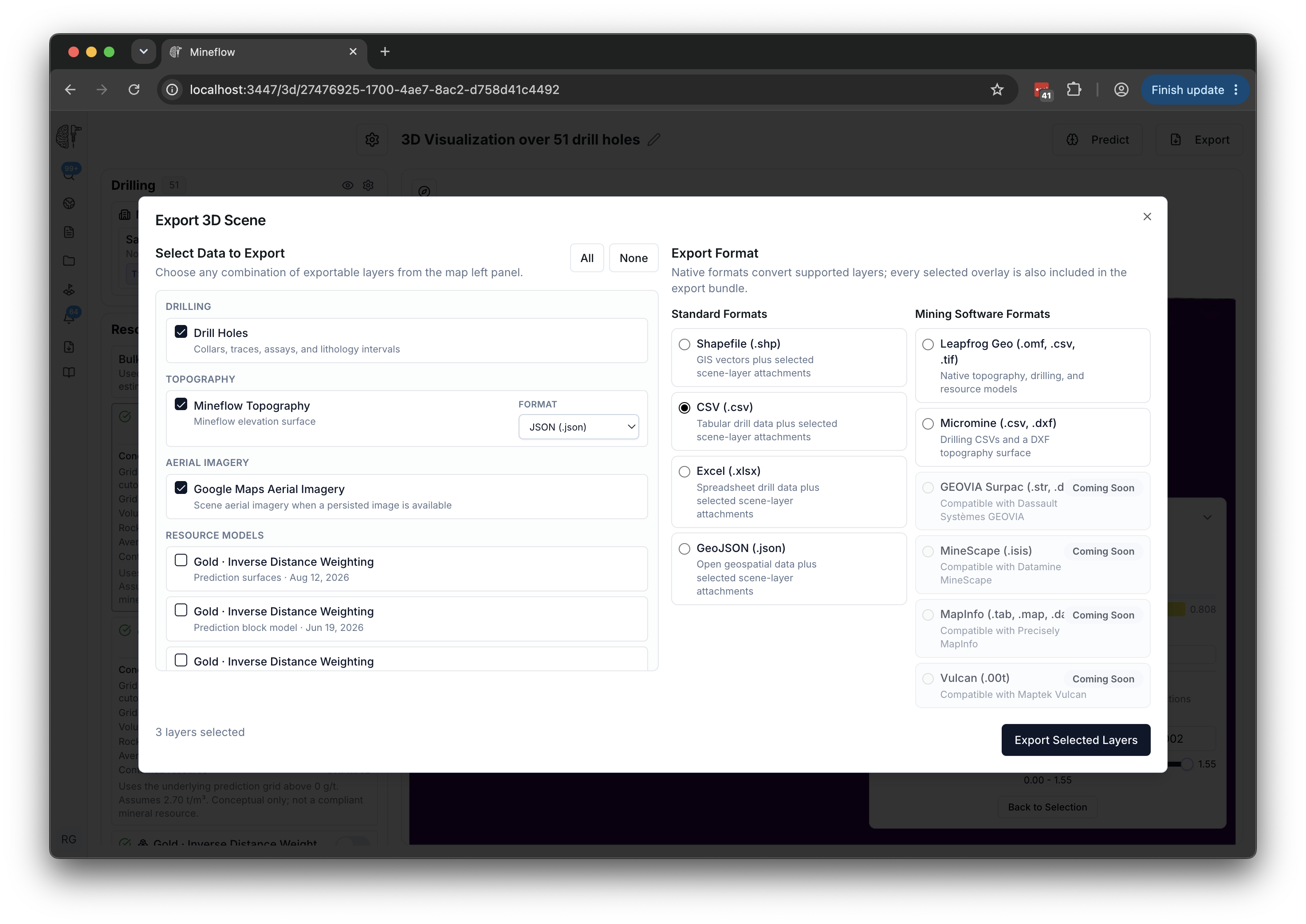
Open the downloaded archive and read its instructions and coordinate information before importing it. Retain source attribution and metadata with the data.
Download a georeferenced map
In the map Results panel, open the target layer's settings and select Download georeferenced TIF when available. The downloaded image includes geographic positioning information for compatible GIS software.
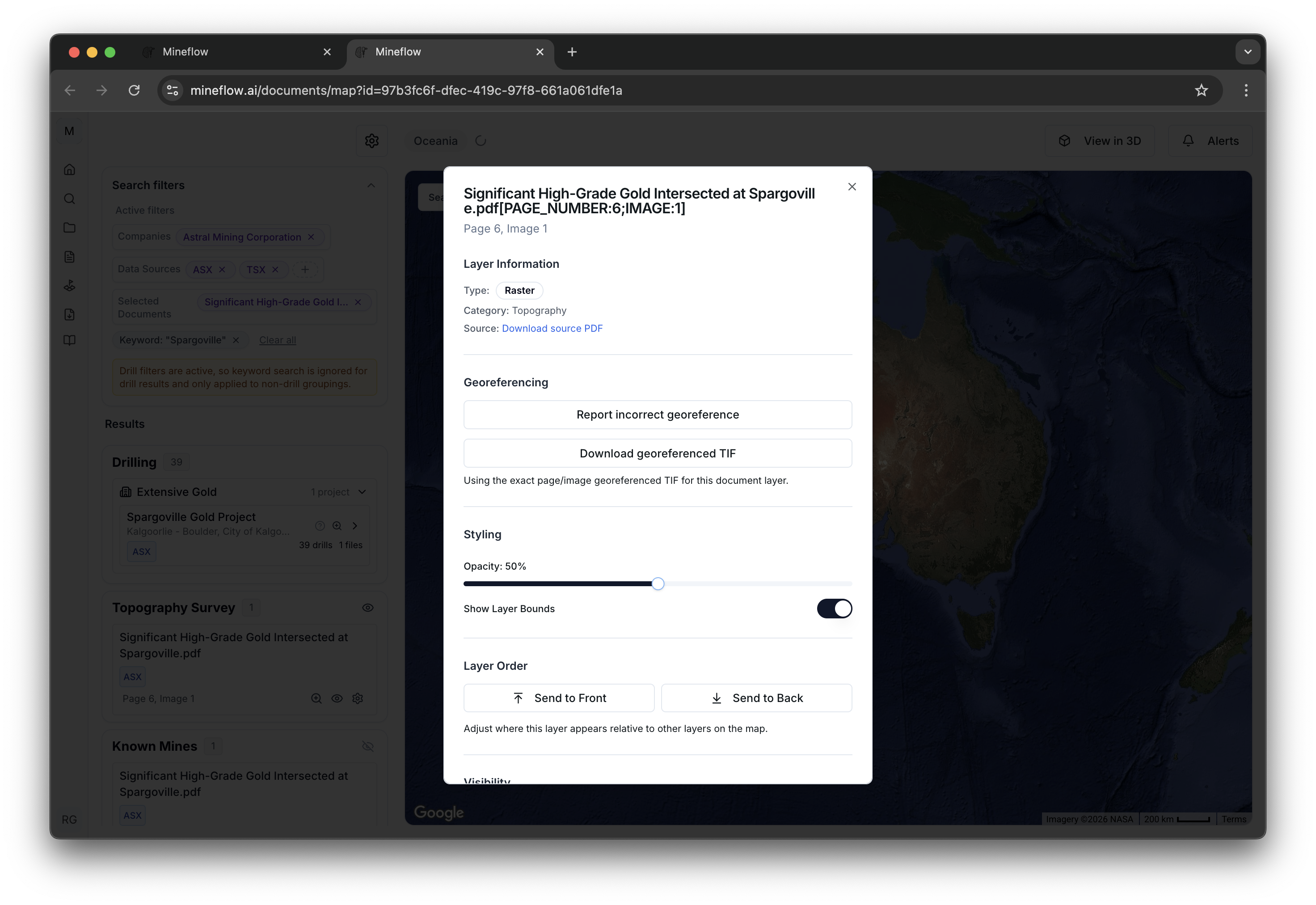
This option depends on a georeferenced output being available for that layer. It does not imply that a scanned coloured map contains the original numeric survey measurements.
Export a cross section from 3D
In a loaded 3D view, select Export → Cross Section. Follow the panel to choose the holes that define the section, review the current assay or lithology display, and export the section in an available format.
Choose holes that represent your intended section line. Check the orientation, displayed values, and legend before using the result in a presentation or report.